
Getting Started with Availo
Welcome! This guide walks you through every step your business needs to take to go from zero to a live booking tool on your website.
Most teams are able to complete these 12 steps in about 15-20 minutes.
- Signing in and configuring the basic details of your business, including your service area, your default booking settings, your business hours, and your logo and brand color.
- Creating a service that your customers can book, adding questions that can be used to create an instant quote, and assigning at least one resource to the service.
- Setting up Availo to automatically sync with your other calendars, so that you can show your customers your real live availability.
- Building a flow that guides your customers to the right service for the right amount of time, optionally provides an instant quote, books the appointment on your actual calendar, and sends a confirmation email to the customer.
- Embedding the booking tool on your website (or sharing the booking page), then walking through a quick test booking so you know everything works before customers use it.
Sign In to Your Dashboard
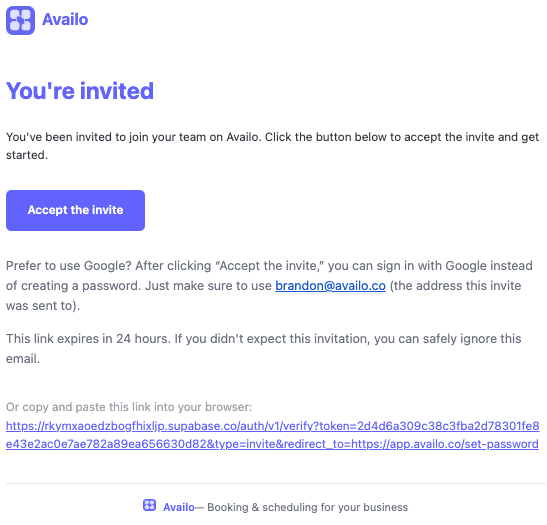
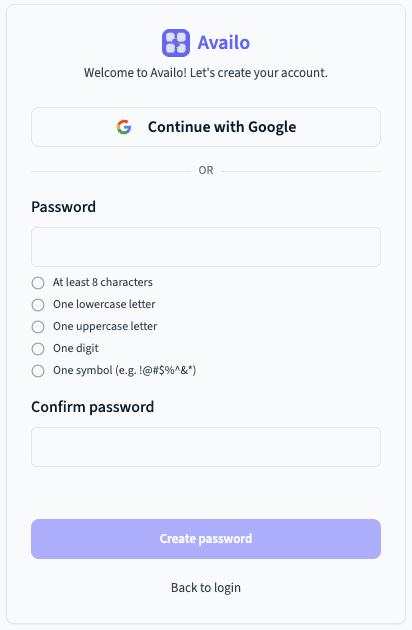
If this is your first time accessing Availo, check your email for the invite. The invitation email explains your options — you can sign in with Google or set a password.
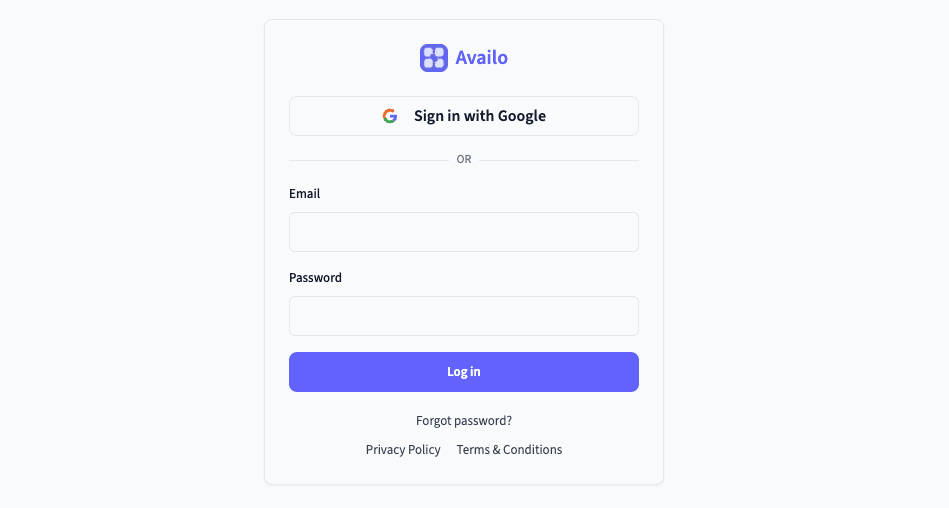
If you're a returning user, head to app.availo.co/login and sign in.
Once you're in, you'll land on the Bookings page. It may be empty at first — bookings appear here incrementally as customers schedule with you.
Define Your Service Area
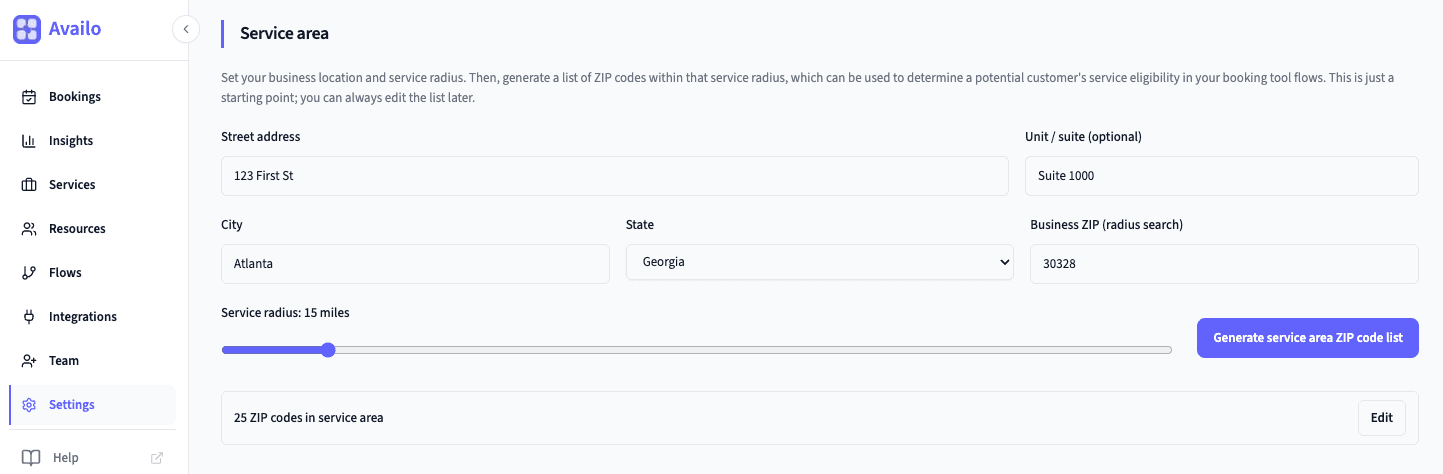
Tell Availo where you work so you can qualify leads and power travel-based pricing later. This all lives under Settings.
- 1.Click Settings in the left sidebar.
- 2.Add your business address (street, city, state, ZIP).
- 3.Define your service area: set a service radius, then use the button to auto-generate ZIP codes from that radius.
- 4.Manually refine the ZIP list (add or remove codes) until it matches where you actually serve.
- 5.Save your changes in Settings.
You can use this service area to automatically check eligibility in your Flows — for example, route out-of-area customers to a Disqualify outcome. See the Features guide → Flows → Service area eligibility for routing, and Features guide → Settings → Service area for a deeper setup reference.
Set Up Default Booking Settings
Before you take bookings, lock in your organization profile and default booking rules. Open Settings and work through these sections.
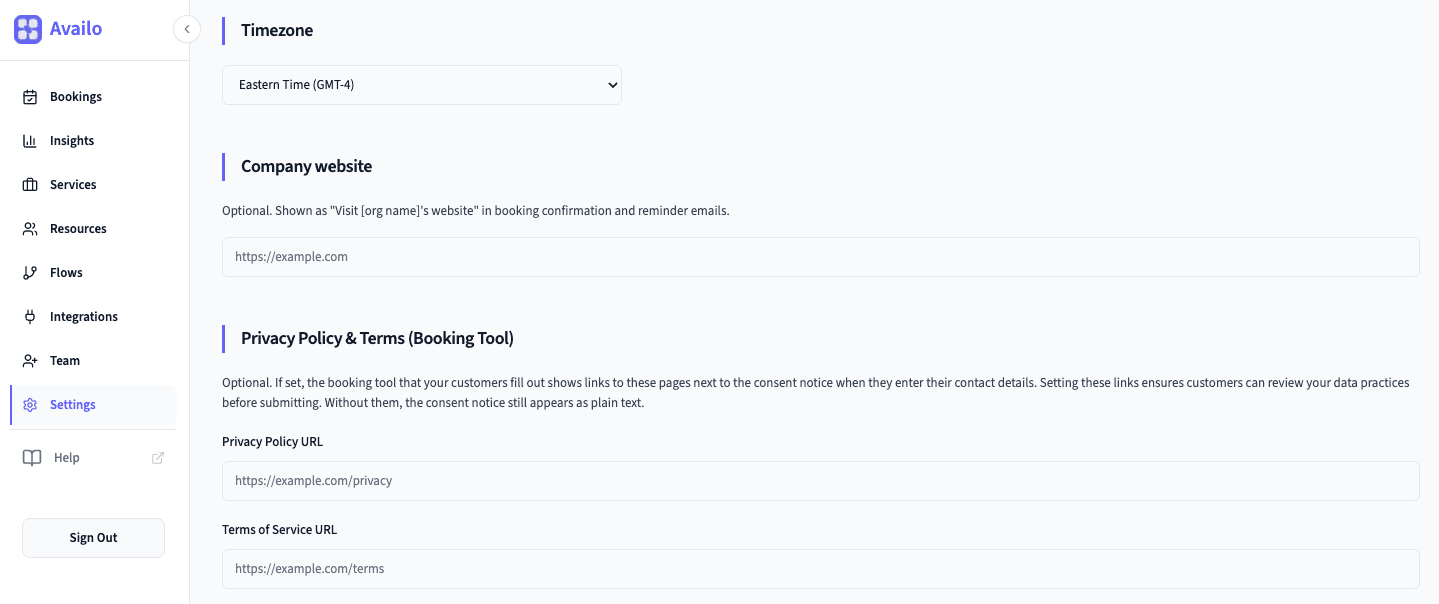
- 1.Organization — company name, URL slug (used on your hosted booking links), website, and timezone (all scheduling uses this timezone).
- 2.Booking Defaults — for example minimum notice before someone can book and reminder email timing.
- 3.For a full field-by-field reference, see Features guide → Settings.
- 4.Save your changes.
Add Your Business Hours
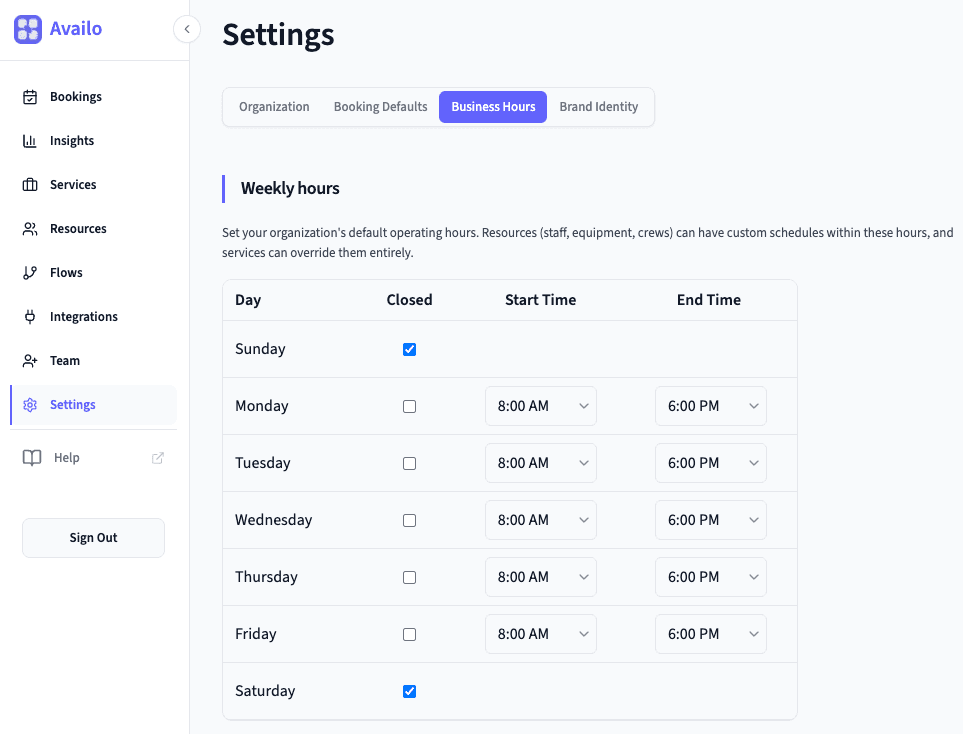
Still under Settings, open Business Hours. This is the default weekly schedule everything else builds on — most teams set something like Monday–Friday, 9:00 AM – 5:00 PM.
- 1.Click Settings → Business Hours
- 2.Set your weekly availability
- 3.Save your changes
Set Your Brand
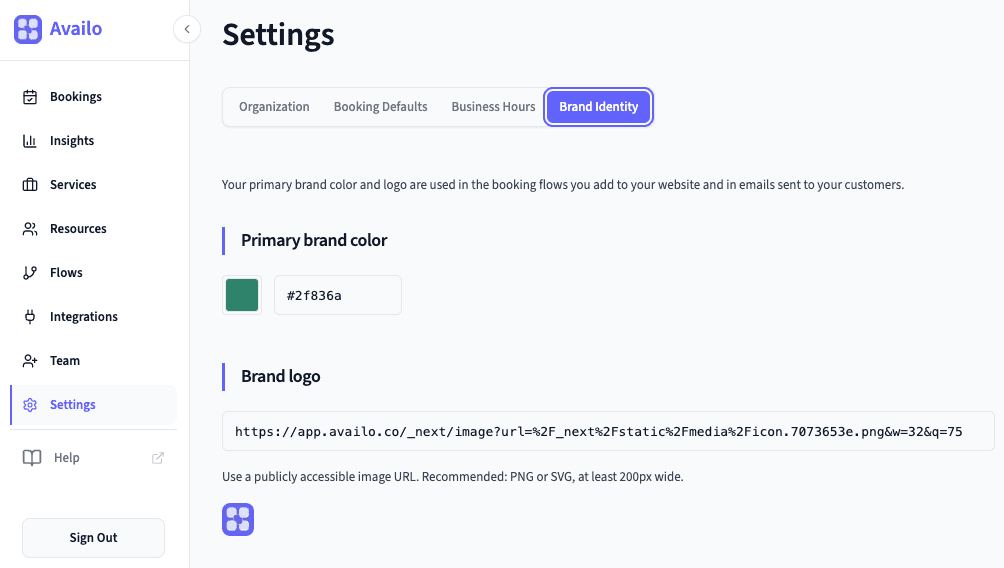
Still in Settings, select the Brand Identity section. This controls how your booking tool and emails are customized for your customers.
- 1.Add your Brand Color, which is your main brand color used in the booking tool and emails.📝 Good to know: If you know your brand color already, you can enter a HEX code, or click the color square to manually pick your color.
- 2.Add your Logo URL. Paste a link to your logo and it'll appear in the booking tool header and in booking emails sent to your customers.📝 Good to know: To find the URL for your logo: go to the image (often on your website), right-click on it, select Copy Image Address, then paste that address into the Brand logo URL field.
Create Your First Service
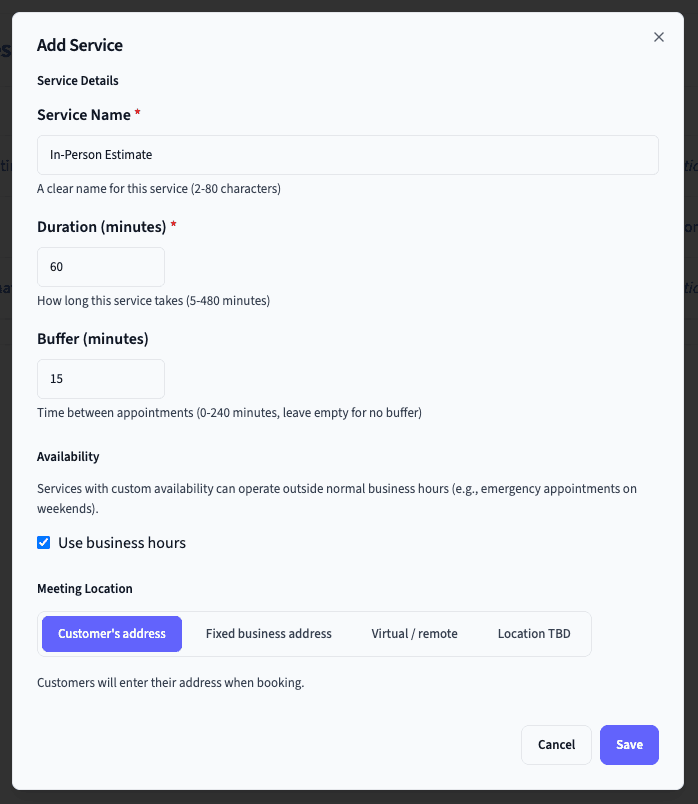
Services are the things people can actually book — like “30-Minute Consultation”, “Home Inspection”, or “Dog Grooming.”
- 1.Click Services in the sidebar
- 2.Click Add Service or edit one of the existing demo services that are created by default
- 3.Fill in the details. For an explanation of each field, visit the Features guide → Services.
Set Up Pricing Questions for Your Service (Optional)
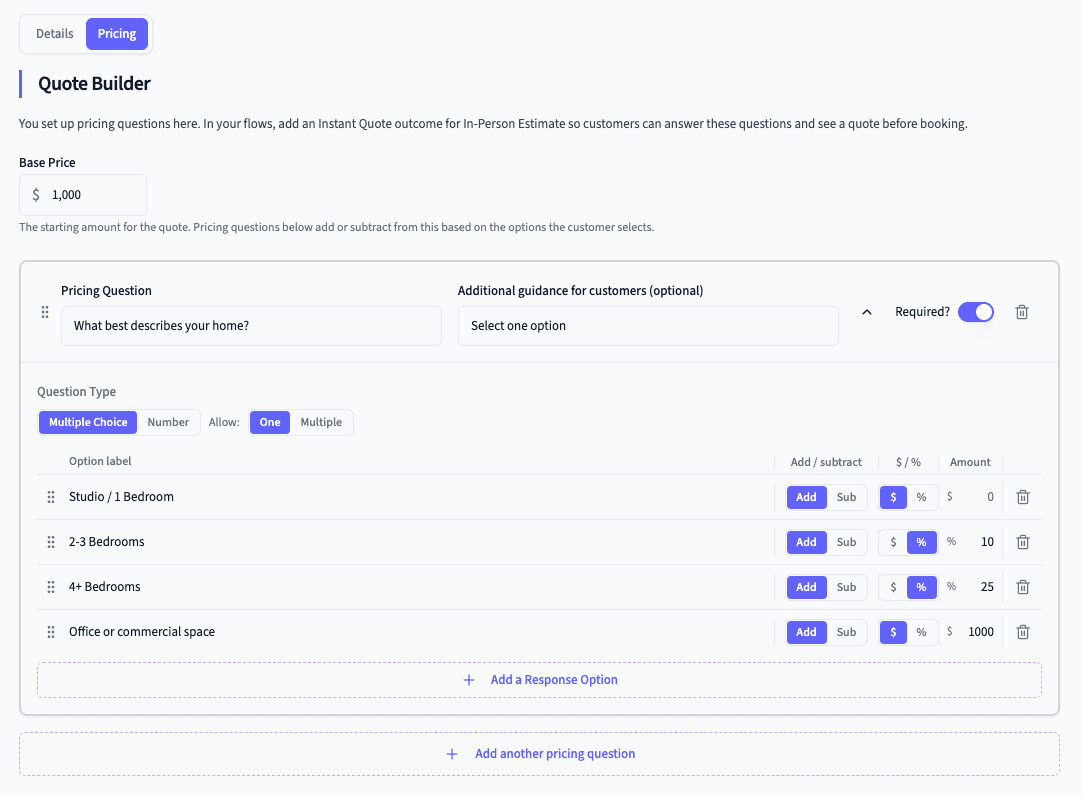
Want to offer instant price estimates before customers book with you? Configure that on each service's Pricing tab. You'll set a base price, add pricing questions, and configure how you want to display the price to your customers. Then you can hook those questions into Flows for routing and Instant Quote outcomes.
For the full walkthrough (question types, how the quote should show up, and how this ties into Flows), head to the Features guide → Services → Quote Builder & pricing.
Add at Least One Resource
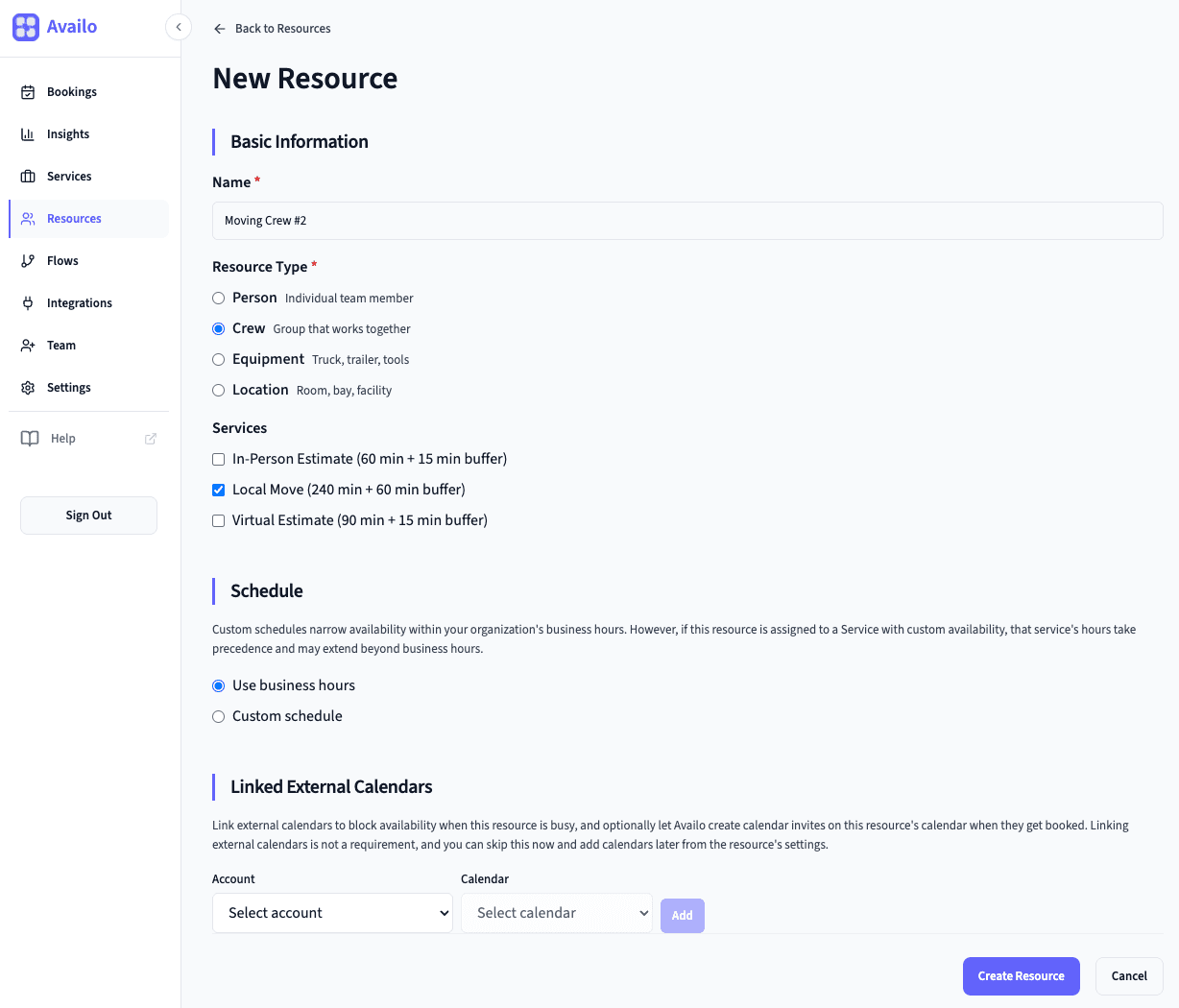
Resources are required for your service to show any available time slots. Without at least one resource assigned to a service, the booking tool won't display any availability.
- Resources represent the people, crews, equipment, or spaces that do the actual work. If it's just you, add yourself as a Person resource. If you have a team, add each person or crew. Either way, every service needs at least one resource assigned to it before customers can book.
- Resources also show up in booking confirmation emails so your customer knows exactly who (or what) is assigned to their appointment.
- 1.Click Resources in the sidebar
- 2.Click Add Resource
- 3.Fill out all details for the resource and then click Save Resource. For full instructions, visit the Features guide → Resources.
Connect Your Calendar (Optional)
Want Availo to check your existing calendar for conflicts, and automatically create events when bookings come in?
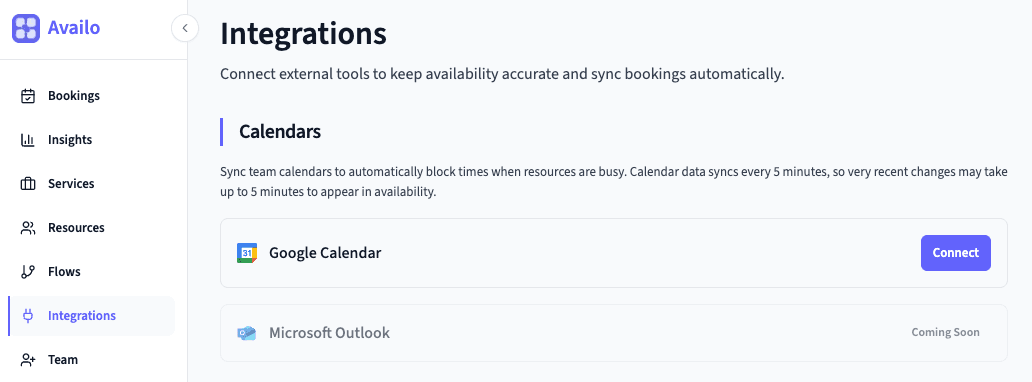
- 1.Go to Integrations in the sidebar
- 2.Click Connect next to Google Calendar
- 3.Authorize the connection in the Google popup
- 4.Assign the calendar to one or more resources
Build a Flow
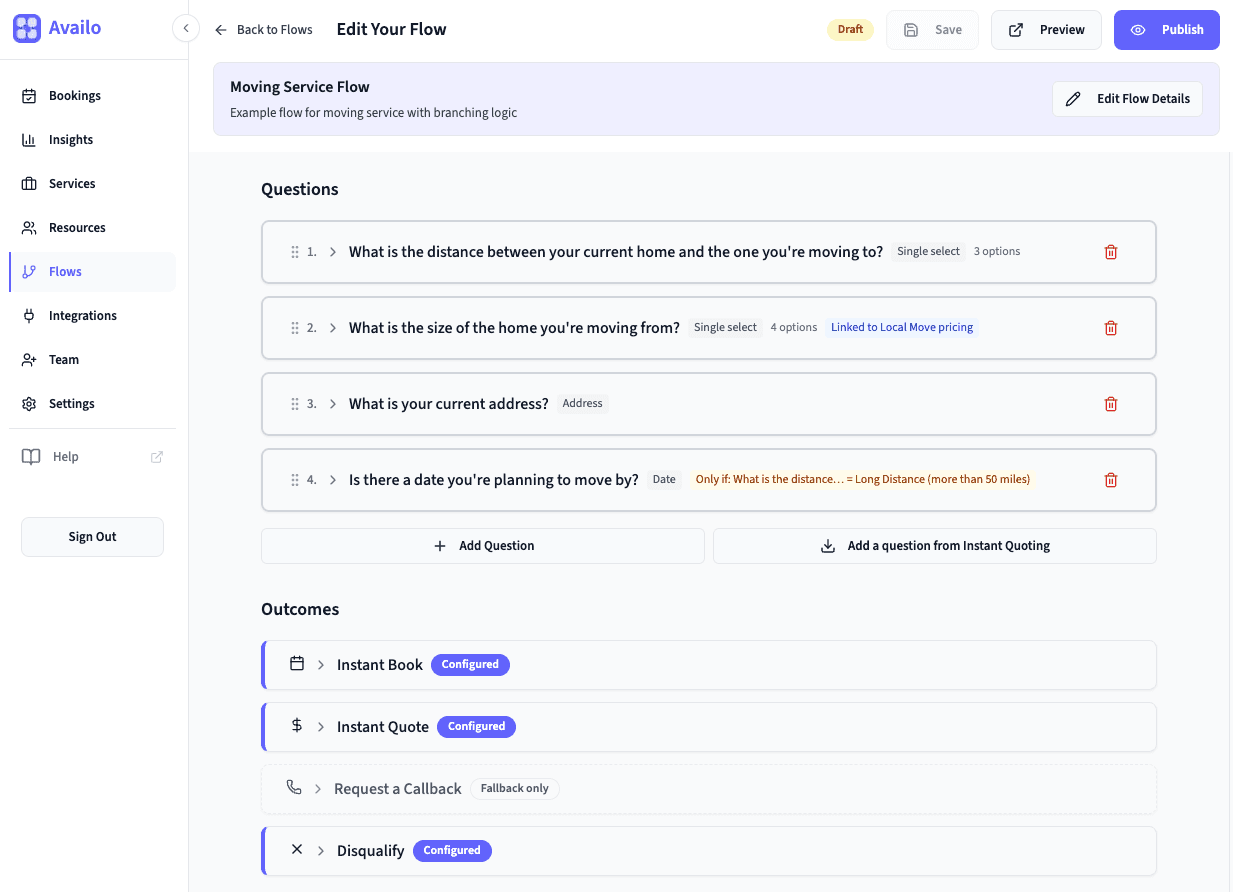
This is where it gets fun. Flows are smart, branching questionnaires that guide customers to the right outcome — whether that's booking instantly, getting a quote, requesting a callback, or something else. Think of a flow as your intake form, your lead qualification process, and your booking experience all in one.
- 1.Create your flow. Click Flows in the sidebar, then Create Flow. Give it a name (e.g., “Get a Quote”) and optionally a description.📝 Good to know: A flow can have anywhere from zero to dozens of questions, and can include complex routing or just a single pre-determined outcome (like taking a website visitor straight to your calendar to book a time slot).💡 Pro tip: Need some inspiration or guidance? Check out Flow Ideas guide for real examples of Flows you can implement for a variety of industries and situations.
- 2.Add questions. Import questions from a service's Pricing tab or add standalone questions that are just for routing. Questions can gather addresses, dates, numbers, and any other information you need. Learn about all the question types and how to configure them in the Features guide → Flows.💡 Pro tip: “Show only when” options can be used to offer specific questions only when earlier answers match specific values. For instance, show “How many bedrooms?” only if they picked “Residential” for property type.
- 3.Set up outcomes. Add outcomes that your customers will reach in the flow, and determine which question responses lead to each outcome:
- Instant Book — Your customer sees your real availability for a Service and books a time slot.
- Instant Quote — Your customer gets a price estimate, then can book the Service they were quoted for.
- Request a Follow Up — Your customer leaves their contact info (email and/or phone).
- Disqualify — Your customer is told if they don't qualify (like a Service that is not available in their area).
📝 Good to know: The fallback catches any customer whose answers don't match your specific routing rules. - 4.Preview, validate, and publish. Use Preview to walk through the flow as a customer and confirm everything works, then click Publish when you're ready. Availo will validate your whole flow before it goes live.
Embed on Your Website
You're in the home stretch. Here's how to get the booking tool onto your site:
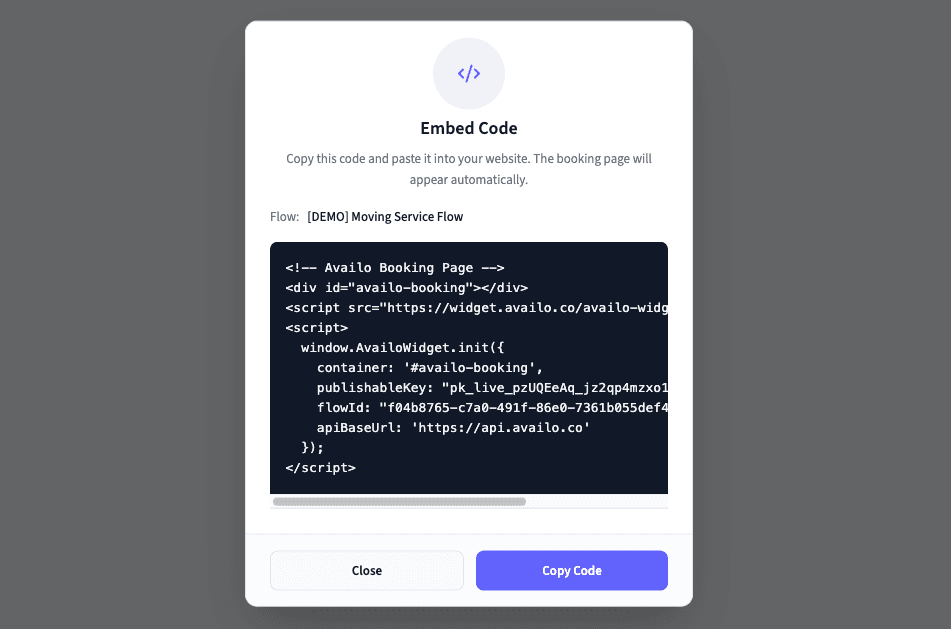
- 1.Find your newly published flow in the Flows list
- 2.Click the Embed Code button next to your flow (the
</>icon) - 3.Click the Copy Code button to copy the code snippet
- 4.Paste it into your website's HTML wherever you want the booking tool to appear
- Need help? Visit the Features guide → Embedding for detailed instructions, or schedule a call with our team [PLACEHOLDER FOR LINK TO SCHEDULE A CALL].
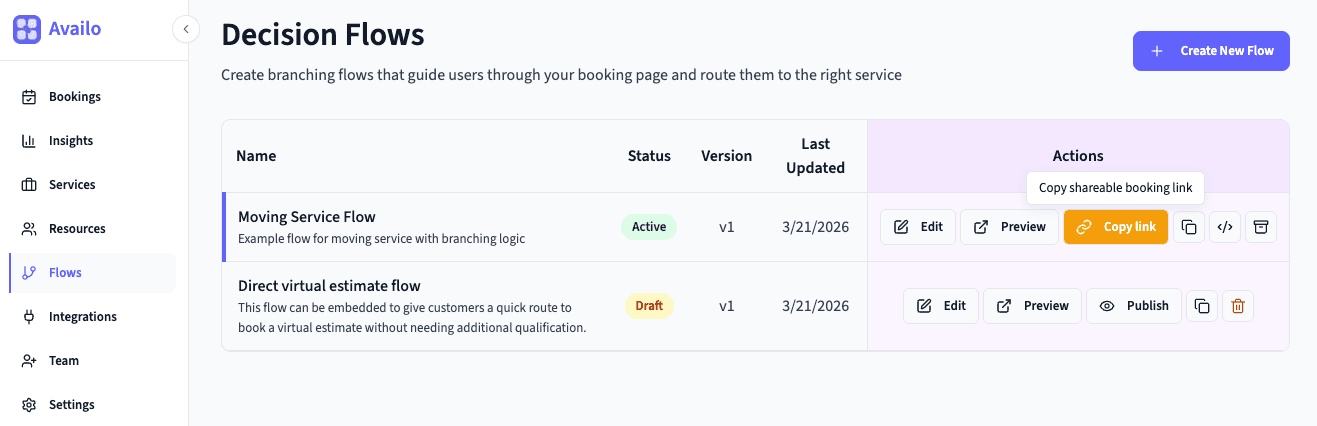
Prefer to share a link instead?
No code needed. Every active flow also gets a hosted booking page with its own URL. Click Copy Link on any active flow and share it directly — via email, social media, or a button on your website.
The URL looks like: https://booking.availo.co/your-company/your-flow
Test It Out
Before you announce it to the world, do a quick end-to-end test to make sure everything feels right.
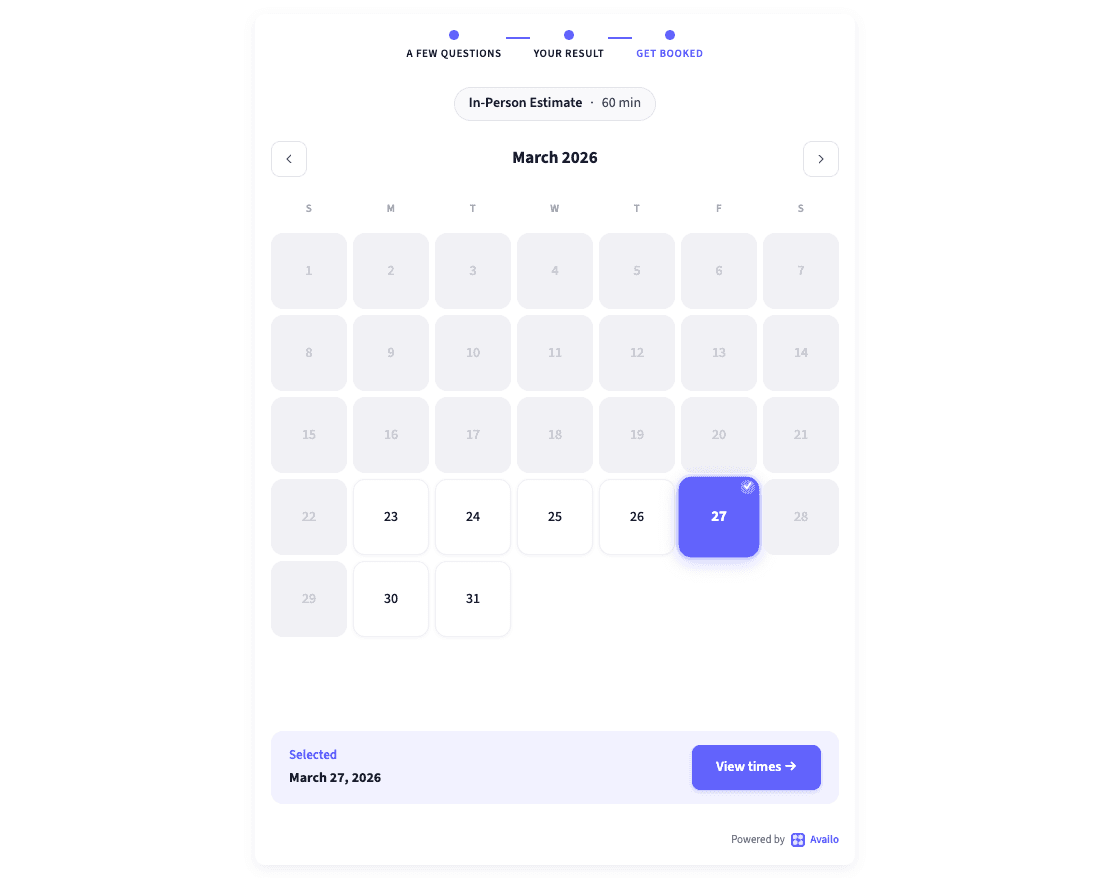
- 1.Visit your website (or use your hosted booking link)
- 2.Walk through the flow as a customer would
- 3.Pick a time slot and complete a test booking
- 4.Check your Bookings page — your test booking should appear
- 5.Check your email — you should receive a confirmation
- 6.If you have calendar integration, check that a calendar event was created
- Run into any issues during testing? Visit the Features guide → Embedding for detailed instructions, or schedule a call with our team [PLACEHOLDER FOR LINK TO SCHEDULE A CALL].
You're all set!
Here's what you just accomplished:
- ✅ Defined your service area (address, radius, ZIP list, manual refinements)
- ✅ Set organization details, timezone, and default booking settings
- ✅ Added your default business hours
- ✅ Configured your brand color and logo
- ✅ Created a bookable service
- ✅ (Optionally) Set up pricing questions to power quotes and qualification in Flows
- ✅ Added at least one resource to your service
- ✅ (Optionally) Connected your calendar
- ✅ Built a smart flow to guide customers
- ✅ Embedded the booking tool on your website
- ✅ Tested the whole thing end-to-end
Now sit back and let the bookings come in. Dive into the Features Guide to explore everything Availo can do, or check the FAQ if you run into any issues or questions.